Manage Zombie Mode via Web UI
Cut Kubernetes costs by 60-70% by automatically scheduling dev, staging, and demo environments to sleep during nights and weekends.
🎁 Free 30-day trial: Start saving now (no credit card)
What you'll get
- Set schedules (e.g. nights and weekends off) per environment; 60–75% cost reduction on non-production
- Calendar UI to define active/sleep times; wake on demand; optional standalone Helm install for existing clusters
Prerequisites
- Codiac account and at least one environment (or Zombie Mode standalone registration); for standalone, Kubernetes cluster and Helm 3
Quick Start
- Register for free trial (2 minutes, no credit card)
- Install Zombie Mode (5 minutes via Helm)
- Create your first schedule (3 minutes in web UI)
- Start saving immediately
For complete documentation: Zombie Mode Cost Optimization Guide
Overview
Codiac's Zombie Mode lets you cut costs by using a schedule to turn workloads off and on automatically.
How It Works
- Set a Zombie Mode schedule to turn environments off and on automatically.
- Cut direct and indirect costs by 60-75%.
- No ongoing management needed - set it and forget it.
Cut Direct Costs
For example, many teams only use dev environments during the workday. You can set up Zombie Mode to automatically shut down these environments at night and restore them first thing in the morning. All you need to do is set up a schedule and apply it to the environment you want to manage.
Example scenario:
Imagine you have five cabinets active on your account:
dev_01dev_02demossandboxprod
The teams which use dev_01, dev_02, and demos are only active during regular business hours.
You set up a Zombie Schedule for these cabinets:
- Workloads Off: 5 p.m. Monday, Tuesday, Wednesday, Thursday, and Friday.
- Workloads On: 7 a.m. Monday, Tuesday, Wednesday, Thursday, and Friday.
This saves you the cloud service provider costs for running these workloads on nights and weekends.
Cost savings calculation:
Before Zombie Mode (24/7):
  3 environments × $280/month = $840/month

After Zombie Mode (M-F 7am-6pm, ~40 hours/week):
  Active hours: 40 hrs/wk × 4.33 wks = 173 hrs/month
  Utilization: 173 / 730 = 24%
  New cost: $840 × 24% = $202/month

Monthly savings: $638
Annual savings: $7,656 (76% reduction)
See the complete ROI calculator: Zombie Mode Savings Breakdown
We provide a "Nights & Weekends" Zombie Schedule template with this schedule. You can also create and customize your schedules.
Cut Indirect Costs
In addition to directly reducing costs for specific unused environments, using Zombie Mode helps reduce overall costs.
Codiac's default autoscaling means that when you use Zombie Mode to shut down an environment, the nodes allocated to that environment are deallocated.
Example scenario:
Imagine your account is using 6-7 nodes to support five cabinets:
dev_01dev_02demossandboxprod
You use the "Nights & Weekends" template to automatically manage three cabinets (dev_01, dev_02, and demos).
The remaining two cabinets (sandbox and prod) only need 4-5 nodes. Zombie Mode's autoscaling automatically scales back your total number of nodes during the off hours.
Additional indirect savings:
- Cluster autoscaler deallocates nodes faster (fewer stragglers)
- LoadBalancer IP addresses released during sleep (AWS: $0.005/hr)
- NAT Gateway data transfer reduced (~$50/month)
Estimated total savings: 60-75% on non-production infrastructure
Deployment Options
Option 1: Standalone Installation (Most Popular)
- Use Zombie Mode WITHOUT the full Codiac platform
- Perfect for teams already using ArgoCD, Flux, kubectl, or Terraform
- Just want cost optimization, nothing else
- Register here → Get Helm chart → Install (5 minutes)
Option 2: Integrated with Codiac Platform
- If you're already using Codiac for deployments
- Zombie Mode comes built-in (no separate install)
- Advanced features: cost analytics, forecasting
Learn more about deployment options
Installation
Prerequisites
- Kubernetes cluster (version 1.20+)
- Helm 3 installed
kubectlaccess with admin permissions
Standalone Installation (5 minutes)
Step 1: Register for free trial
Visit: app.codiac.io/zombie/register
What you'll get:
- Unique registration token (for Helm installation)
- Access to web UI (https://app.codiac.io/zombie)
- 30-day free trial (no credit card required)
Step 2: Install via Helm
# Add Codiac Helm repo
helm repo add codiac https://charts.codiac.io
helm repo update

# Install Zombie Mode
helm install zombie-mode codiac/zombie-mode \
  --set token=YOUR_REGISTRATION_TOKEN \
  --namespace codiac-zombie \
  --create-namespace

# Verify installation
kubectl get pods -n codiac-zombie

# Expected output:
# NAME                          READY   STATUS    RESTARTS   AGE
# zombie-scheduler-xxxxx        1/1     Running   0          30s
Step 3: Access web UI
Navigate to: app.codiac.io/zombie
Your cluster should appear in the environment list, ready to schedule.
For complete installation guide: Getting Started with Zombie Mode
Web UI Management
Enable Zombie Mode
Zombie Mode is scoped to the environment. It affects all the cabinets inside the environment you choose.
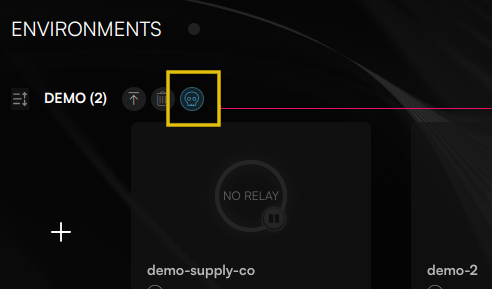
Step 1: Click the Zombie Mode button to open the Zombie Mode Scheduler.
Step 2: The Zombie Mode Scheduler pop-up appears.
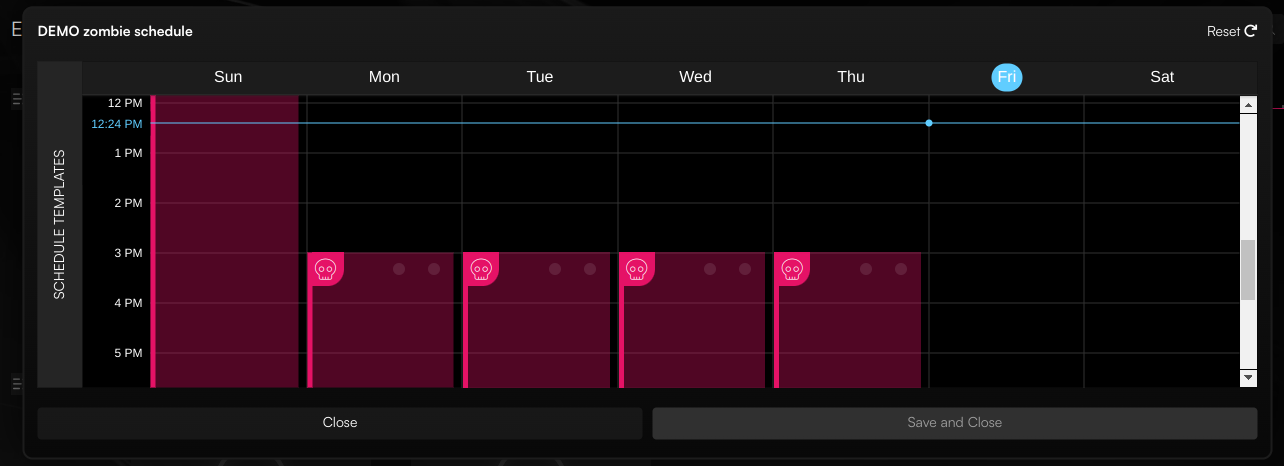
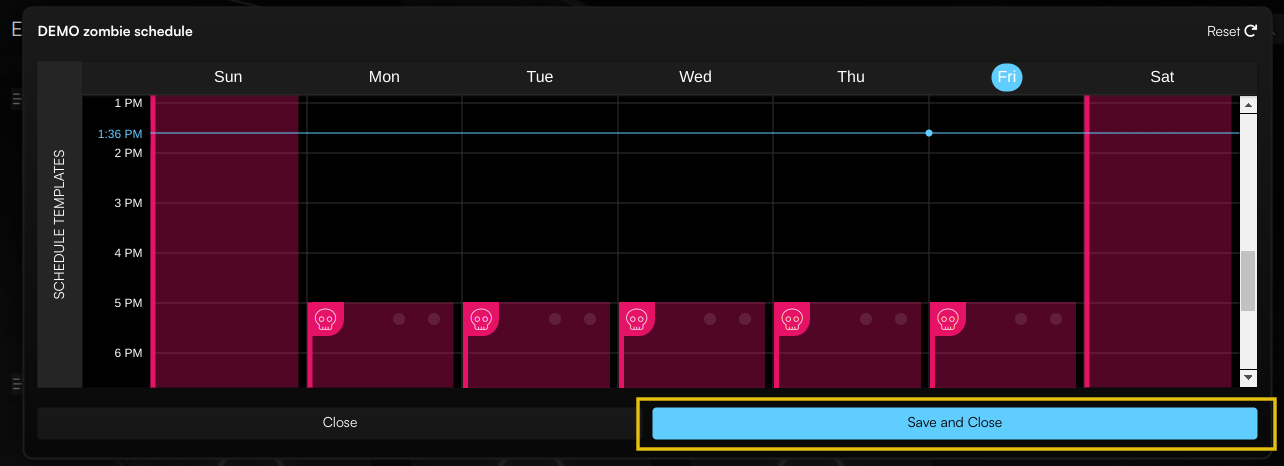
Step 3: Click and drag to change the schedule times. Zombie Mode turns your workloads off during the pink blocks.
Visual calendar interface:
- Pink blocks = Sleeping (scaled to zero)
- Green blocks = Active (workloads running)
- Drag to adjust = 15-minute increments
- Multi-select = Apply same schedule to multiple days
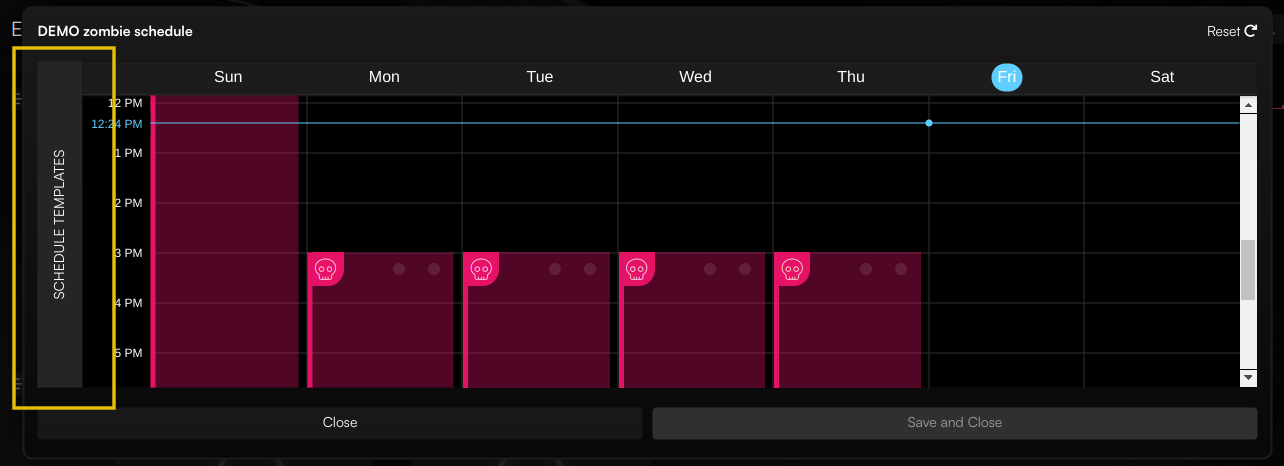
Step 4: Click SCHEDULE TEMPLATES to open the templates menu.
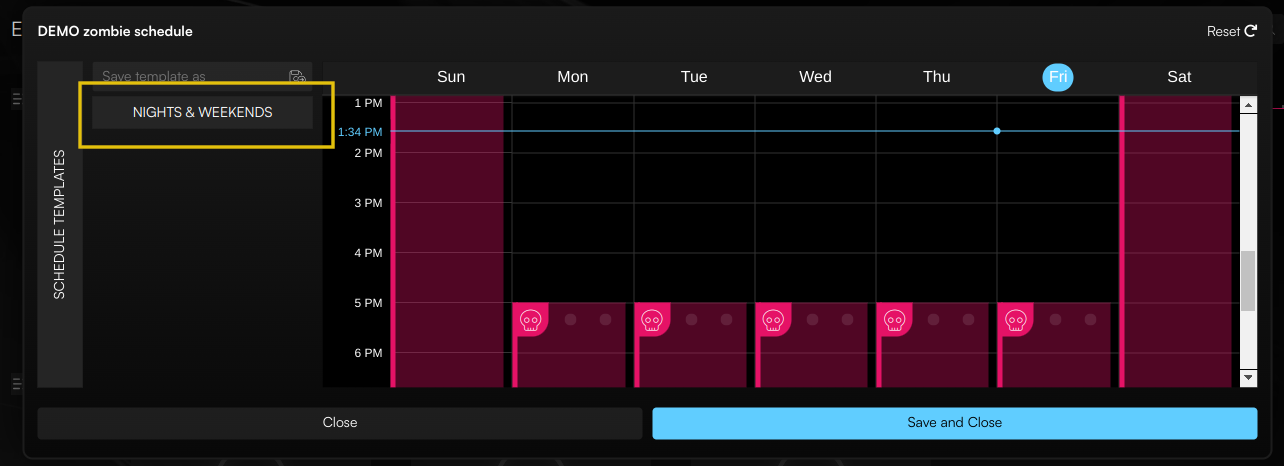
Step 5: Click NIGHTS AND WEEKENDS to apply this template to your schedule. You can also create and save custom templates.
Available templates:
- Nights & Weekends (Default): M-F 7am-6pm active
- Business Hours Extended: M-F 6am-10pm active
- 24/7 with Weekend Sleep: Always on weekdays, weekends off
- Custom: Create your own
Step 6: When you are happy with your schedule, click Save and Close to save it and close the pop-up.
What happens next:
- Schedule activates immediately
- Next sleep/wake times shown in dashboard
- Automatic notifications when environment enters sleep mode
Timezone Configuration
Set timezone per environment:
- Open environment settings
- Select timezone (e.g., "America/New_York", "Europe/London")
- Daylight Saving Time handled automatically
Global team considerations:
- Engineering team in San Francisco: Pacific Time (PST/PDT)
- QA team in New York: Eastern Time (EST/EDT)
- Different schedules per team timezone
Manual Controls
Manual Wake-Up:
- Find environment in dashboard
- Click Wake Now button
- Wait 2-5 minutes for pods to start
- Environment stays awake until next scheduled sleep
Manual Sleep:
- Click Sleep Now button
- 5-minute grace period (configurable)
- Pods scale to zero
- Wakes up at next scheduled time
Override Schedule (One-Time Exception):
- Click Add Override
- Select date and time range
- Choose "Active" or "Sleep"
- Save - applies once, schedule resumes normally
Use cases:
- Late-night deployment: Override to keep staging active 10pm-11pm
- Holiday schedule: Sleep all day on December 25th
- Emergency access: Manual wake during off-hours
Disable Zombie Mode
Option 1: Delete specific schedule events
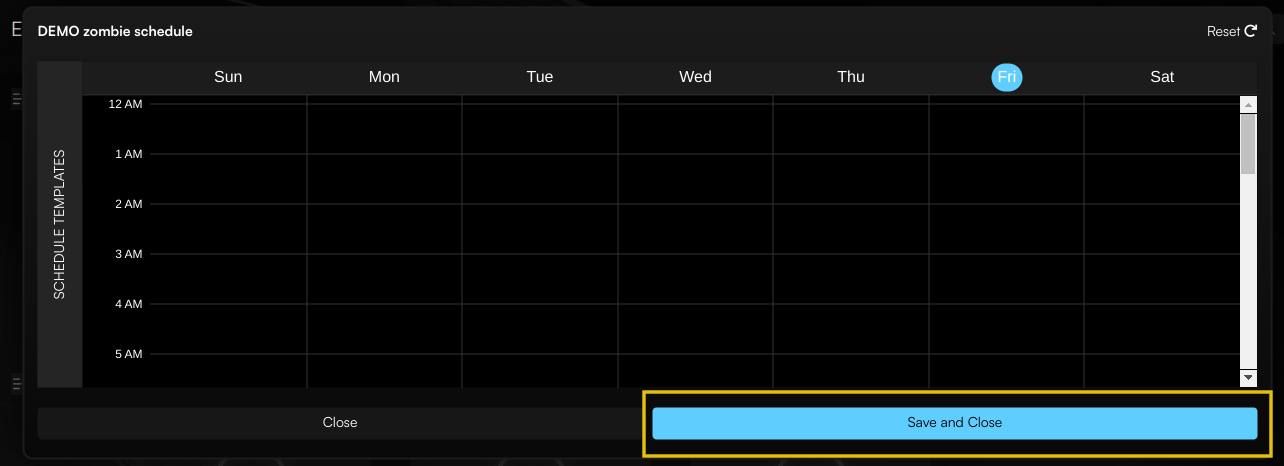
- Click Delete event to disable a scheduled Zombie Mode session.

Delete all the scheduled Zombie Mode sessions to completely disable Zombie Mode for your environment.
- Click Save and close to save your changes and close the pop-up.
Option 2: Disable entire environment
- Toggle "Zombie Mode Enabled" switch to OFF
- Environment stays active 24/7
- Schedule configuration preserved (can re-enable later)
Option 3: Uninstall completely (Standalone only)
# Remove Zombie Mode from cluster
helm uninstall zombie-mode -n codiac-zombie
kubectl delete namespace codiac-zombie
Note: Your workloads remain unchanged. No vendor lock-in.
Monitoring & Analytics
Savings Dashboard
Access: app.codiac.io/zombie → Select environment → View Savings
Metrics shown:
- This Month: Actual savings to date (e.g., "$347 saved")
- Projected Annual: Estimated yearly savings
- Sleep Hours: Total hours scaled to zero this week/month
- Next Event: Upcoming sleep or wake-up time
Per-Environment Breakdown:
- Individual environment savings
- Sleep/wake event history
- Cost attribution (compute vs storage)
- Utilization percentage
Historical Trends:
- 3-month view
- 6-month view
- 12-month view
- Export to CSV for reporting
Alerts & Notifications
Configure alerts:
- Click environment → Settings → Notifications
- Choose channels:
- Slack webhook
- PagerDuty (Enterprise)
- Select events:
- Environment entering sleep mode
- Environment waking up
- Failed wake-up (image pull errors)
- Exceeded monthly budget
Alert examples:
Subject: [Zombie Mode] dev-env entering sleep mode
Time: Friday 6:00pm EST
Next wake-up: Monday 7:00am EST
Subject: [Zombie Mode Alert] staging-env failed to wake up
Error: ImagePullBackOff (registry timeout)
Action required: Check image registry connectivity
Manual wake: app.codiac.io/zombie
Advanced Features
Graceful Shutdown Configuration
Default behavior:
- 5-minute grace period before scaling to zero
- Sends SIGTERM to pods
- Waits for connections to drain
- Force-kills after grace period
Custom grace period:
- Environment settings → Zombie Mode → Advanced
- Set grace period (60-600 seconds)
- Per-deployment overrides available
Use cases:
- Long-running requests: Increase grace period to 10 minutes
- Stateful apps: Ensure data flushes before shutdown
- WebSocket connections: Allow clients to disconnect gracefully
Exclusion Rules
Namespace exclusions:
Exclude from scheduling:
- kube-system (system components)
- cert-manager (certificate management)
- monitoring (Prometheus, Grafana)
- ingress-nginx (ingress controller)
Deployment exclusions:
Keep these always active:
- dev-cluster/always-on-api
- dev-cluster/background-worker (long-running jobs)
Why exclude:
- System services must stay active
- Monitoring tools need 24/7 uptime
- Specific apps have SLA requirements
Budget Alerts
Set monthly budget:
- Environment settings → Budget
- Enter budget (e.g., "$500/month")
- Set alert threshold (e.g., "Alert at 80%")
Alert when:
- Approaching budget (80% threshold)
- Exceeded budget (100%)
- Projected to exceed by month-end
Example alert:
Subject: [Budget Alert] staging-env at 85% of monthly budget
Current spend: $425 / $500 budget
Projected month-end: $530 (106%)
Recommendation: Review schedule or increase budget
Troubleshooting
Environment Won't Wake Up
Symptoms:
- Scheduled wake time passed, but pods still at 0
- Manual "Wake Now" doesn't work
Causes & Solutions:
1. Image Pull Errors
# Check pod events
kubectl get events -n your-namespace --sort-by='.lastTimestamp'

# Look for: ImagePullBackOff, ErrImagePull
# Solution: Verify image exists in registry, check credentials
2. Insufficient Cluster Resources
# Check node capacity
kubectl describe nodes

# Look for: Insufficient cpu, Insufficient memory
# Solution: Increase cluster size or reduce pod resource requests
3. Zombie Mode Agent Not Running
# Check agent status
kubectl get pods -n codiac-zombie

# If not running, reinstall
helm upgrade zombie-mode codiac/zombie-mode -n codiac-zombie
Unexpected Sleep During Active Hours
Symptoms:
- Environment sleeping when it should be active
- Intermittent 503 errors during business hours
Causes & Solutions:
1. Timezone Mismatch
- Check: Environment settings → Timezone
- Solution: Set correct timezone (e.g., PST vs EST)
2. Schedule Configuration Error
- Review: Visual calendar shows correct active hours?
- Solution: Recreate schedule or use template
3. Manual Override Active
- Check: Dashboard shows "Override active: Sleep until..."
- Solution: Delete override or wait for it to expire
Pods Not Scaling to Zero
Symptoms:
- Sleep time reached, but pods still running
- Costs not decreasing as expected
Causes & Solutions:
1. Deployment Excluded from Schedule
- Check: Environment settings → Exclusions
- Solution: Remove deployment from exclusion list if incorrect
2. HPA Minimum Replicas Preventing Scale-Down
# Check HPA settings
kubectl get hpa -n your-namespace

# Look for: minReplicas > 0
# Solution: Temporarily reduce HPA minReplicas or exclude from Zombie Mode
3. PodDisruptionBudget (PDB) Blocking Scale-Down
# Check PDBs
kubectl get pdb -n your-namespace

# Solution: Adjust PDB or exclude deployment
Use Cases & Best Practices
Development Environments
Recommended schedule:
Monday-Friday: 7am-7pm (active)
Weekends: Sleep
Holidays: Sleep
Grace period: 5 minutes
Best practices:
- Extended hours (7am-7pm) to accommodate early/late workers
- Manual wake-up available for off-hours work
- Slack notifications when environment sleeps
Expected savings: 70-75%
Staging & QA Environments
Recommended schedule:
Monday-Thursday: 8am-8pm (active)
Friday: 8am-6pm (active)
Weekends: Sleep (with manual override for deployments)
Grace period: 10 minutes (allow test suites to finish)
Best practices:
- Longer grace period for running tests
- Override schedule for weekend releases
- Budget alerts to catch runaway tests
Expected savings: 60-65%
Demo Environments
Recommended schedule:
Monday-Friday: 6am-10pm (active for global sales team)
Weekends: Sleep
Default: Active (avoid 503 during demos)
Wake-up time: 2 minutes (quick restore)
Best practices:
- Extended hours for global timezone coverage
- Keep active by default to avoid embarrassment
- Still save 40% on weekends
Expected savings: 40-45%
CI/CD Pipeline Environments
Recommended schedule:
Monday-Friday: Always active (builds happen anytime)
Weekends: Sleep (unless emergency hotfix)
Event-driven wake-up: Via webhook (roadmap feature)
Best practices:
- Consider partial scheduling (keep agents, scale test runners)
- Manual override for weekend hotfixes
- Webhook integration for build-triggered wake-up (coming soon)
Expected savings: 25-30% (weekend savings only)
Pricing
Standalone Zombie Mode
| Plan | Price | Features |
|---|---|---|
| Free Trial | $0 | 30 days to prove savings, full features, no credit card |
| Standard | 10% of monthly savings | Unlimited clusters/environments, all features, you keep 90% |
| Enterprise | Custom | Volume discounts (50+ clusters), SSO, SLA |
Value-based pricing examples:
Save $500/month → Pay $50 → Keep $450 (90%)
Save $1,000/month → Pay $100 → Keep $900 (90%)
Save $2,000/month → Pay $200 → Keep $1,800 (90%)
You only pay when you save. Zero risk.
Start free trial: app.codiac.io/zombie/register
Codiac Platform (Integrated)
Zombie Mode included at no extra cost if you're using the full Codiac platform.
Learn more about Codiac Platform
FAQ
Q: What happens if someone tries to access a sleeping environment?
A: The ingress route returns HTTP 503 (Service Temporarily Unavailable). Customize the 503 page to show next wake-up time and manual override instructions.
Q: Does this work with StatefulSets and databases?
A: Yes, but not recommended for production databases. Use managed databases (RDS, Cloud SQL) for production. Dev/staging databases with Zombie Mode is OK.
Q: Can I use this with ArgoCD or Flux?
A: Yes. Zombie Mode works alongside any GitOps tool. It temporarily scales pods to zero without conflicting with Git-based desired state.
Q: Is there a minimum commitment?
A: No. Free 30-day trial, then 10% of your monthly savings. Cancel anytime. You only pay when you save. No vendor lock-in.
For more questions: FAQ: Zombie Mode & Cost Optimization
What's next
- Complete Zombie Mode Guide – Features, pricing, ROI, installation
- CLI Guide: Zombie Mode – Overview and web link
- FAQ: Zombie Mode – Common questions
- Cost optimization strategies – Use cases and examples
Ready to save 60-70% on Kubernetes costs?
🎁 Start free 30-day trial (no credit card required)
Questions? chris@codiac.io | Book a demo