Manage Users
Learn how to add, update, and delete users through the Codiac UI.
What you'll get
- Add users (invite by email), assign roles, reset passwords, remove users from your organization
- Settings > Users in the dashboard; roles can be created via CLI (
codiac auth role create)
Prerequisites
- Codiac account and admin (or appropriate) permission to manage users
Add User
To add a user to your Codiac account:
- In the UI, click Settings > Users > +New User.
- Enter the user's First Name, Last Name, and email address.
- Click one or more Assigned Roles. Note: The Administrator role is available by default. Use
codiac auth role createto add more roles to your account. - Click Save.
If you are adding an existing Codiac user, have them do the following steps in the CLI:
codiac logoutto log out of Codiac.codiac loginto log into Codiac and refresh their access list.
If you are adding a new Codiac user:
- Click the user's name in the Active User Accounts section.
- Click Send Reset Password Link.
- Ask the new user to follow the instructions in the Reset Password email.
- After the new user resets their password, they must install the CLI and use
codiac loginto log into Codiac.
Reset a User's Password
- In the UI, click Settings > Users.
- Click the user's name in the Active User Accounts section.
- Click Send Reset Password Link.
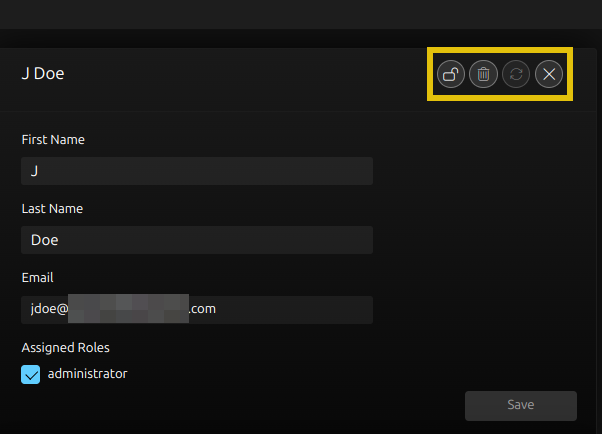
- The user receives an email with instructions on how to reset their password.
Delete a User
This process removes the user from your Codiac account. It does not affect their Codiac user account.
- In the UI, click Settings > Users.
- Click the user's name in the Active User Accounts section.
- Click the user's Assigned Role(s) to remove their access to your Codiac account.
- Click Delete.
- Click Save to delete the user.
warning
This process only removes the user from your Codiac account. You must remove them from your cloud service provider account separately.
What's next
- RBAC (Web) – Roles and permissions in the UI
- CLI: RBAC – Create roles and set permissions via CLI
- CLI: Manage users – User management overview